Difference between revisions of "learn:technicalTipSheets"
From MGH Learn Pathology
| Line 13: | Line 13: | ||
3. Choose “Google Chrome” | 3. Choose “Google Chrome” | ||
== Optimal cellsens settings == | == Optimal cellsens settings == | ||
| − | [[File:33ECA66C-4DE7-4293-93C6-CBB3D10ACFA9.jpeg | + | [[File:33ECA66C-4DE7-4293-93C6-CBB3D10ACFA9.jpeg|frameless|center|Optimal Cellsense Settings]] |
| + | |||
[https://www.medialab.com/dv/dl.aspx?d=1695521&dh=b8596&u=111736&uh=c3cf8 Tip Sheet] | [https://www.medialab.com/dv/dl.aspx?d=1695521&dh=b8596&u=111736&uh=c3cf8 Tip Sheet] | ||
== Microsoft Teams == | == Microsoft Teams == | ||
{{video|https://youtu.be/EzIKc7poMfY|}} | {{video|https://youtu.be/EzIKc7poMfY|}} | ||
Revision as of 15:04, September 1, 2021
Contents
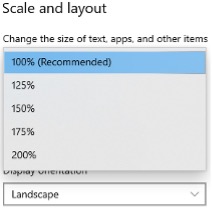
How to adjust scaling on sign-out booth TVs
| 1. Click on the white search box on the task bar and type “Make everything bigger”, and hit enter | 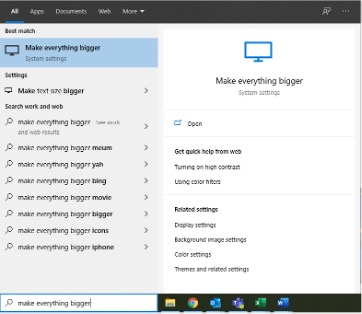 |
| 2. Under “Change the size of apps and text on the main display,” click the dropdown box
3. Choose 100% |
 |
| 4. Open the Start menu, click the profile icon, and click “Sign out” | 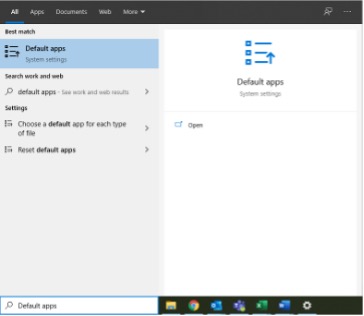 |
5. You can now log back in
How to set Google Chrome as the default browser
| 1. Click on the white search box on the task bar, type “Default apps,” and hit enter | 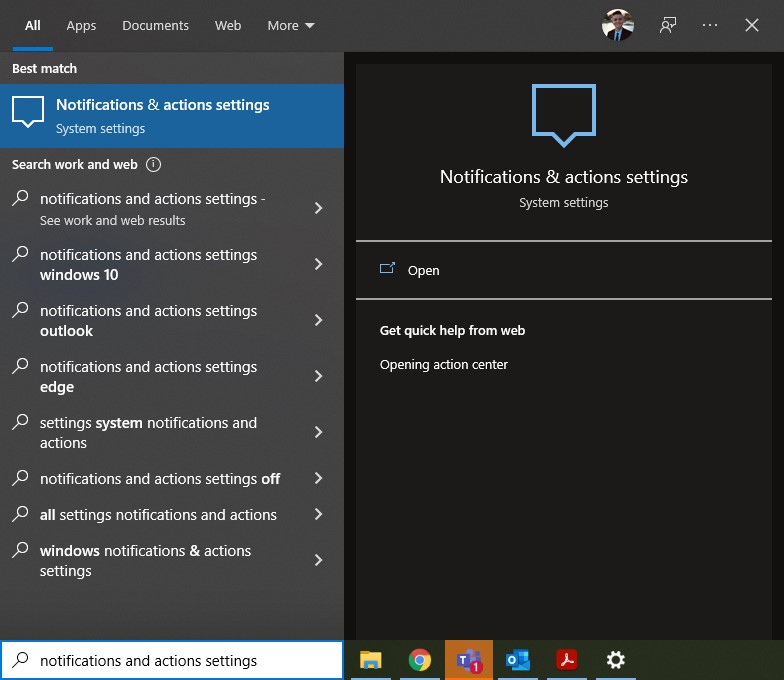 |
| 2. Scroll down to the bottom, under “Web browser,” and click the dropdown box |  |
3. Choose “Google Chrome”
Optimal cellsens settings
Microsoft Teams


